

How to use Jupyter Notebook effectively is an essential skill for developers and data scientists looking to streamline their data analysis and machine learning workflows. This interactive environment allows you to seamlessly combine live code, dynamic visualizations, and narrative text into a single, shareable document. With FPT AI Factory, we provide a dedicated AI Notebook platform accelerated by high-performance NVIDIA GPUs, offering a fully optimized and pre-configured environment.
1. What is a Jupyter Notebook?
A Jupyter Notebook is an open-source, web-based interactive environment that allows users to write and run code, visualize data, and combine explanations in a single document. It is widely used in data science, AI, and research because it makes it easy to experiment, document, and share results in one place.
1.1. Definition and how it works?
Jupyter Notebook works as an interactive document made up of “cells,” where each cell can contain code, text, or outputs such as charts and tables. Users can execute code step by step, immediately see the results, and iterate quickly without running the entire program from scratch.
Behind the scenes, the notebook connects to a kernel (execution engine) that runs the code and returns outputs to the browser interface. This architecture allows support for multiple programming languages like Python, R, and Julia.
1.2. How does it differ from JupyterHub?
The main difference is that Jupyter Notebook is a single-user application, while JupyterHub is a multi-user platform designed to manage and serve notebooks for many users at once.
JupyterHub runs on a central server and creates separate notebook environments for each user, making it suitable for teams, classrooms, or enterprise deployments. In contrast, a standard Jupyter Notebook is typically used locally or by an individual for personal development and experimentation.
>> Read more: Jupyter Notebook vs JupyterLab: Which one should you choose?
2. 03 ways to launch AI Notebook
AI notebooks can be deployed in different ways depending on your technical needs, infrastructure, and scalability requirements. Here are the three most common approaches to setting up and running your notebook environment.
2.1. Running Notebook locally
Running a notebook locally means installing tools like Jupyter Notebook on your personal computer or workstation. This approach is suitable for individual users, small projects, or early-stage experimentation.
It provides full control over the environment, including libraries and configurations, and does not require an internet connection once set up. However, local machines are often limited in terms of computing power, making them less ideal for training large AI models or processing massive datasets.
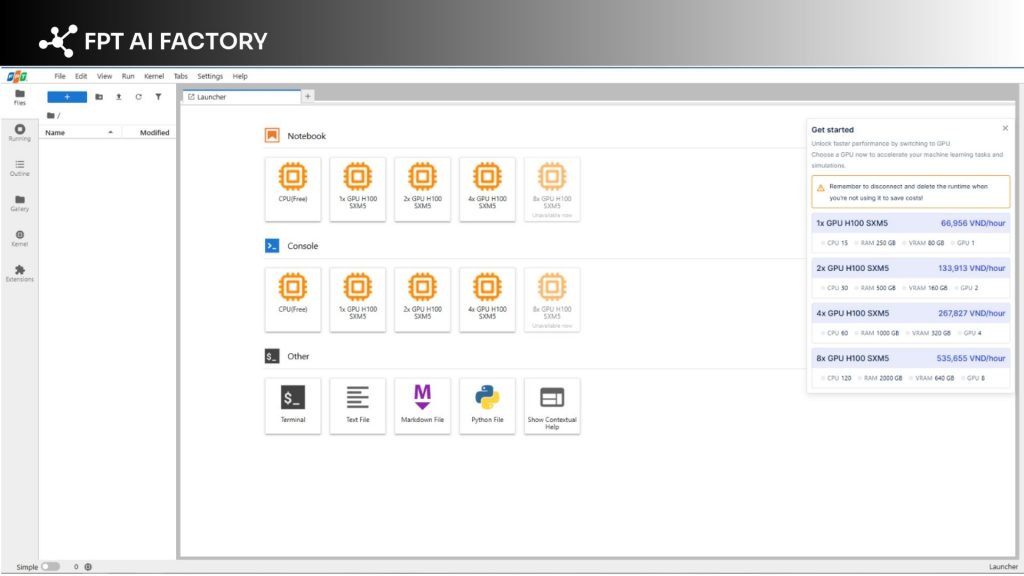
Running a notebook locally means installing tools like Jupyter Notebook (Source: FPT AI Factory)
2.2 Running Notebook on Cloud Platforms (GPU Containers)
Instead of relying on local hardware, you can deploy your notebook on a cloud platform by setting it up within a GPU container. This method bridges the gap between manual control and cloud computing power, allowing you to leverage high-performance GPUs for demanding workloads while maintaining a custom environment.
For example, you can easily install and configure a Jupyter Notebook environment on a GPU Container provided by FPT AI Factory. This setup grants you the flexibility of a containerized environment backed by enterprise-grade infrastructure.
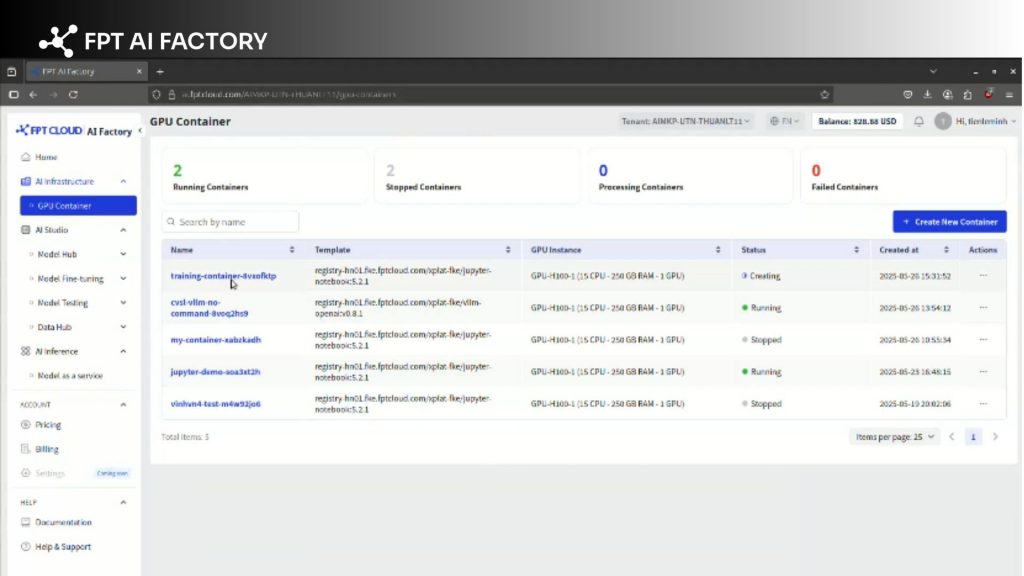
Install and configure a Jupyter Notebook environment on a GPU Container (Source: FPT AI Factory)
2.3. Using a managed Jupyter Notebook service
The most streamlined approach is using a managed notebook service. This cloud-based model allows users to access powerful computing resources, including GPUs, without the hassle of managing physical infrastructure or manually configuring containers. It is widely used for AI development, especially when working with large datasets or complex models.
One example is AI Notebook, a managed notebook service designed for AI and data science workflows. It provides a ready-to-use environment where users can develop, train, and deploy models directly on the cloud.
AI Notebook helps streamline the AI development process with several key advantages. It offers scalable GPU resources for handling heavy workloads, reduces setup time with pre-configured environments, and enables easy collaboration across teams. This makes it a practical choice for both individual developers and enterprises looking to accelerate AI projects.
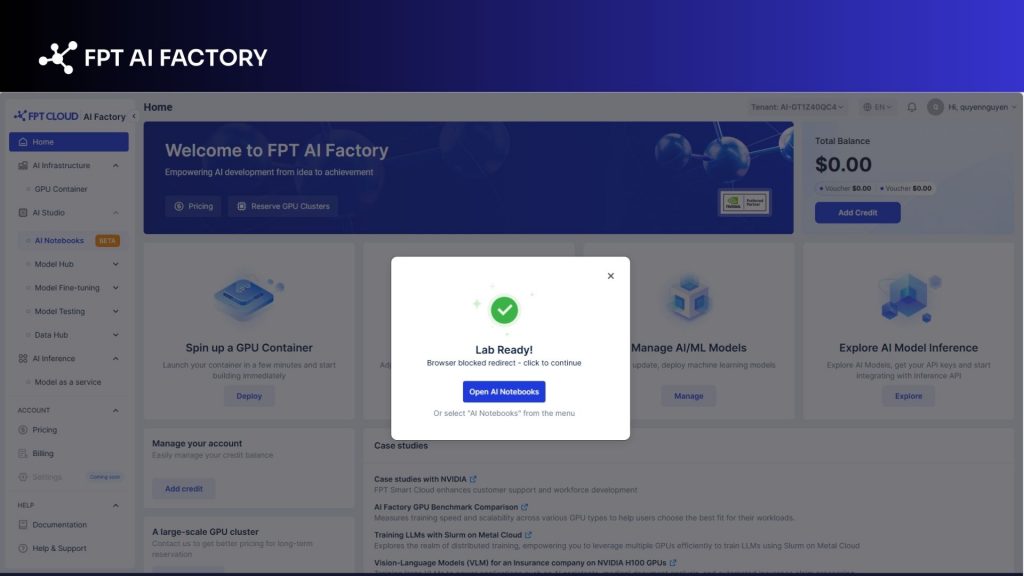
AI Notebooks allow users to access powerful computing resources (Source: FPT AI Factory)
3. How to Use Jupyter Notebook
Using Jupyter Notebook is straightforward once the environment is set up. The process typically includes installing the tool, creating a notebook, and configuring the environment to run your code efficiently.
3.1. Install and Launch Jupyter Notebook
To get started, you first need to install Jupyter Notebook on your system. The most common method is using Python’s package manager with the command pip install notebook, or installing it via Anaconda for a more user-friendly setup.
After installation, you can launch Jupyter by running jupyter notebook in your terminal or command prompt. This will start a local server and automatically open the interface in your web browser, where you can manage files and notebooks.
3.2. Create a New Notebook
Once Jupyter is running, you can create a new notebook directly from the web interface. Simply click the “New” button and select a kernel (ex. Python 3), and a new notebook will open in a separate tab.
Each notebook consists of cells where you can write code, add text, or display outputs like charts. You can execute code cell by cell and instantly view the results, making it ideal for experimentation and iterative development.
3.3. Set up the environment and overall tasks
Before running complex workflows, it’s important to configure your environment properly. This includes installing required libraries, selecting the correct kernel, and organizing dependencies using virtual environments.
Practically, utilizing this approach helps teams to:
- Keep project libraries separated, eliminating the risk of dependency conflicts.
- Guarantee consistent setups so that all experimental results can be easily reproduced.
- Organize every phase of the project, including data prep and model evaluation, directly inside a single document.
A well-prepared environment ensures smoother execution and makes your notebooks easier to maintain, share, and scale for larger AI or data science projects.
4. Use Cases of Jupyter Notebook in AI & Data Science
Jupyter Notebook is widely used across AI and data science because it allows users to write code, visualize results, and document insights in a single interactive environment. It is especially valuable for iterative workflows where quick experimentation and real-time feedback are important.
4.1. Data analysis
Jupyter Notebook is commonly used for exploratory data analysis (EDA), where users load, clean, and examine datasets step by step. Its interactive nature makes it easier to test different transformations and immediately see results. This helps analysts better understand data patterns, relationships, and anomalies before moving to more advanced modeling tasks.
4.2. Visualization
Jupyter Notebook supports powerful visualization libraries such as Matplotlib, Seaborn, and Plotly, allowing users to create charts directly within the notebook. Visual representations like bar charts, line graphs, and scatter plots help identify trends, compare variables, and communicate insights more effectively.
4.3. Machine learning experiments
Jupyter Notebook is widely used for prototyping and testing machine learning models. Developers can experiment with different algorithms, tune parameters, and evaluate results interactively without rerunning the entire workflow. This makes it ideal for rapid experimentation and model comparison during the development phase.
4.4. Model fine-tuning
For more advanced workflows, Jupyter Notebook is used to fine-tune pre-trained models on custom datasets. Users can adjust hyperparameters, monitor performance, and iterate quickly in a controlled environment. This is especially useful in modern AI applications, where adapting large models to specific domains is a key step in improving accuracy and performance.

Jupyter Notebook is widely used across AI and data science (Source: FPT AI Factory)
5. Managed notebook vs self-hosted Jupyter Notebook
When choosing how to run Jupyter Notebook, organizations typically decide between self-hosted environments and managed notebook platforms. While self-hosting offers flexibility, managed solutions are increasingly preferred for AI workflows due to their scalability and ease of use.
Self-hosted Jupyter Notebook gives full control over infrastructure, dependencies, and configurations. However, users must handle setup, maintenance, scaling, and security manually. As projects grow, this can become complex, especially when managing compute resources, ensuring reproducibility, and deploying models into production.
Key advantages of managed notebooks over self-hosted setups include:
- No infrastructure management: Platforms handle installation, updates, security, and monitoring, reducing the need for DevOps effort.
- Scalable compute resources (CPU/GPU): Easily scale up resources for heavy workloads like model training, which is difficult to achieve efficiently on local or self-managed systems.
- Faster setup and onboarding: Pre-configured environments allow users to start working in minutes instead of spending time on manual setup.
- Built-in collaboration and accessibility: Teams can access notebooks from anywhere, share work easily, and collaborate in real time.
- End-to-end AI workflow integration: Managed platforms often integrate the full AI lifecycle, from data processing and model training to deployment, making it easier to move from experimentation to production without switching tools.
5. FAQs
5.1. How do I run a Jupyter Notebook on my PC?
You can run Jupyter Notebook on your PC by installing it via pip install notebook or Anaconda, then launching it from the command line using jupyter notebook, which opens the interface in your web browser.
5.2. Is Jupyter Notebook a Python IDE?
Jupyter Notebook can function similarly to a lightweight IDE because it allows you to write, run, and debug code interactively, but it is not a full-featured IDE since it lacks advanced project management and development tools.
5.3. Can I run a Jupyter Notebook from the command line?
Yes, you can start and manage Jupyter Notebook directly from the command line using commands like jupyter notebook, which launches a local server and provides a URL to access the notebook in your browser.
Ready to speed up your development? Get started with our Starter Plan today. New users are granted a $100 free credit that can be used instantly after logging in, no setup time required. The credit is valid for 30 days and includes:
- $10 for GPU Container and $10 for GPU Virtual Machine
- $10 for AI Notebook and $70 for AI Inference & AI Studio
- Access to up to 5M tokens with Llama-3.3 and 20+ advanced AI models
For businesses or organizations looking for customized solutions or large-scale deployment, please reach out to FPT AI Factory via the official contact form to receive dedicated support and tailored services.
In conclusion, understanding how to use Jupyter Notebook is an essential step for anyone working in AI, data science, or analytics. From running experiments to building and fine-tuning models, Jupyter Notebook provides a flexible and interactive environment that supports the entire development workflow.
If you’re looking to go beyond local setups and want a more scalable, end-to-end AI experience, consider exploring managed solutions like AI Notebook. Contact FPT AI Factory today to get expert consultation for professional business requirements of large-scale projects. In addition, let’s claim your $100 credit when register to begin building and deploying your AI projects more efficiently.
Contact Information:
Hotline: 1900 638 399
Email: support@fptcloud.com